Posts

The Raspberry Pi Platform and Python Programming for the Raspberry Pi ( Week 4)

Build a circuit using your Raspberry Pi that causes an LED to blink when a push button is  NOT  pressed. However, the LED should stay on continuously when the push button  IS  pressed. Your video should show the LED blinking when the push button is not pressed, and it should show that the LED is continuously on while the button is pressed. Take a video of your circuit demonstrating the required actions and submit a hyperlink to your video's location on the Internet. Do  not  upload a video here. >>> https://drive.google.com/file/d/1hpyWED9n5G08zKCcJRRrTV1MhjHXhc5_/view Code for the Raspberry Pi Board for this project >>> import RPi . GPIO as GPIO import time GPIO . setmode ( GPIO . BCM ) ledPin = 18 buttonPin = 17 GPIO . setup ( ledPin , GPIO . OUT ) # LED pin set as output GPIO . setup ( buttonPin , GPIO . IN , pull_up_down = GPIO . PUD_UP ) # Button pin set as input w/ pull-up while...

The Raspberry Pi Platform and Python Programming for the Raspberry Pi (Week 3)

Image
Write a Python program that prompts the user to input 3 numbers, one at a time (see Instructions section for more details). Turn in your source code showing a full execution of your program and the result that it prints to the screen. >>> Upload a screenshot showing a full execution of your program and the result that it prints to the screen. In the execution that you take a screenshot of, you should enter the numbers in  non-sorted order  so that we can tell that sorting did occur. >>>

The Raspberry Pi Platform and Python Programming for the Raspberry Pi (Week 2)

Image
Boot the Raspberry Pi and install the “scrot” program to take screen shots. You can install it by typing “sudo apt-get install scrot” in a terminal window. Use the scrot program to take a screenshot of your Raspberry Pi. You will need to submit the screenshot as evidence that you completed the task, but you should submit the screenshot using your Raspberry Pi. I recommend using Epiphany as the browser since it is packaged with the Raspian/NOOBS installation. >>>

The Raspberry Pi Platform and Python Programming for the Raspberry Pi (Week 1)

Image
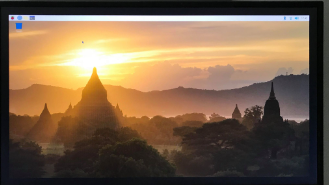
Setup your Raspberry Pi by using NOOBS to install Raspbian on the micro SD card. Boot your Raspberry Pi to the desktop and take a picture (with a regular camera/phone) of the desktop. >>>

The Arduino Platform and C Programming (Week 4)

Write a program that allows the user to control the LED connected to pin 13 of the Arduino. When the program is started, the LED should be off. The user should open the serial monitor to communicate with the Arduino. If the user sends the character '1' through the serial monitor then the LED should turn on. If the user sends the character '0' through the serial monitor then the LED should turn off. If you do not have an Arduino, you can use the web-based Arduino simulator at www.tinkercad.com. You will need to create an account for free. There are instructional videos on that website that will teach you how to use the simulator. >>> # define BAUD_RATE 9600 char incomingByte = ' ' ; void setup ( void ) { Serial. begin (BAUD_RATE); pinMode (LED_BUILTIN, OUTPUT); } void loop ( void ) { if (Serial. available () > 0 ){ incomingByte = Serial. read (); // Serial.println(incomingByte); if (incomingByte == ' 1 ' ){ d...

The Arduino Platform and C Programming (Week 3)

Image
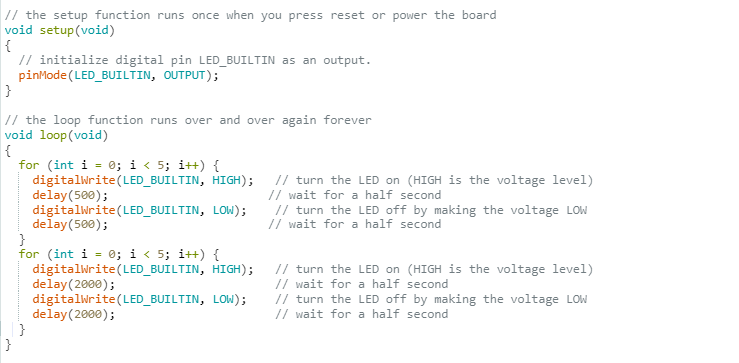
Write a program that causes the built-in LED connected to pin 13 on the Arduino to blink, alternating between fast blinks and slow blinks. The LED should blink 5 times quickly and then it should blink 5 more times slowly. When blinking quickly, the LED should have a 1 second period, so it should be high for 0.5 seconds and low for 0.5 seconds. When blinking slowly, the LED should have a 4 second period, so it should be high for 2 seconds and low for 2 seconds. The LED should continue to blink in this alternating fashion for as long as the Arduino receives power. Make sure your program compiles. Then, save a text version of your program and upload it here. Do not upload the executable file. >>>

The Arduino Platform and C Programming (Week 2)

Write a program in C that computes and prints out the first six digits in the Fibonacci sequence. Look up the definition of the Fibonacci sequence if you don't know it. The first two numbers in the sequence are 0 and 1, but your program should compute the next four digits. Make sure your program compiles using gcc. Then, save a text version of your program. Copy and paste the text of your program in the box here.  >>> #include<stdio.h> int main() {      int i, n=6, t1=0, t2=1, nextTerm;      printf("Fibonacci Series: ");      for ( i=1; i<=n; ++i)      {            printf("%d, ",t1)            nextTerm = t1+t2;            t1 = t2;            t2 = nextTerm;      }      return 0; }